TABLE OF CONTENTS
- Installation
- Set the correct parameters
- Log in to the web configuration user interface
- Web configuration access
This feature allows the Morek EV 2x22kW CORE-series charger to work smoothly with the household load and other devices when there isn’t enough available current to support full power for everything. The EVSE automatically adjusts the charging power based on the total household consumption.
Installation
To use this functionality, install a CT clamp in the building’s main power cabinet, in front of the main MCB. Locate the main PCB inside the charger and connect the CT wires to the charge point - look at the image below. Alternatively, a meter instead of CTs can be used to control DLM for a single unit. Communication in this case is based on Modbus RS485.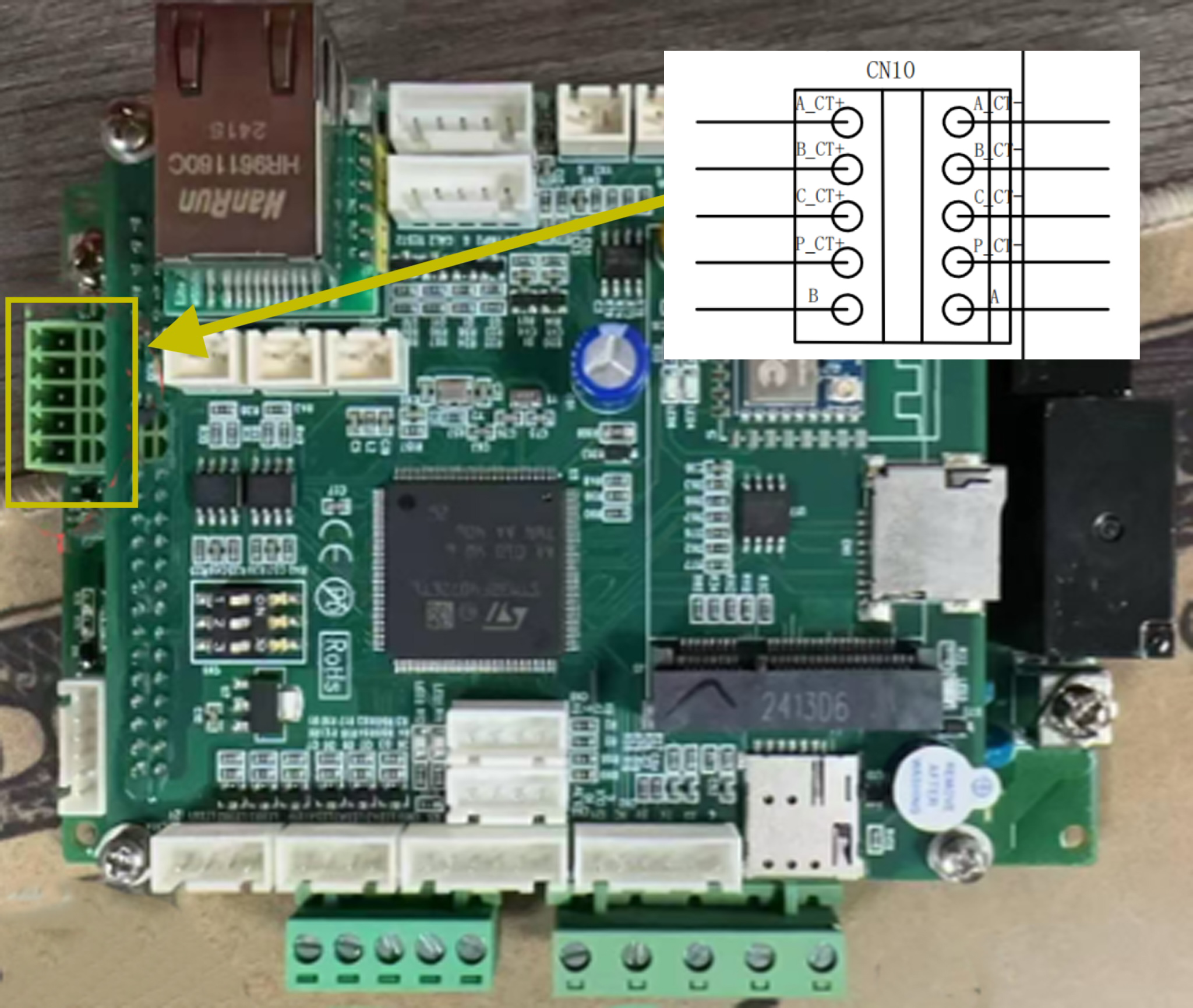
Log in to the web configuration user interface:
Connect the charger to your router’s LAN port using an Ethernet cable.
Connect your laptop to the same router via Wi-Fi.
On the charger screen, find the Charger IP (see section for network configuration).
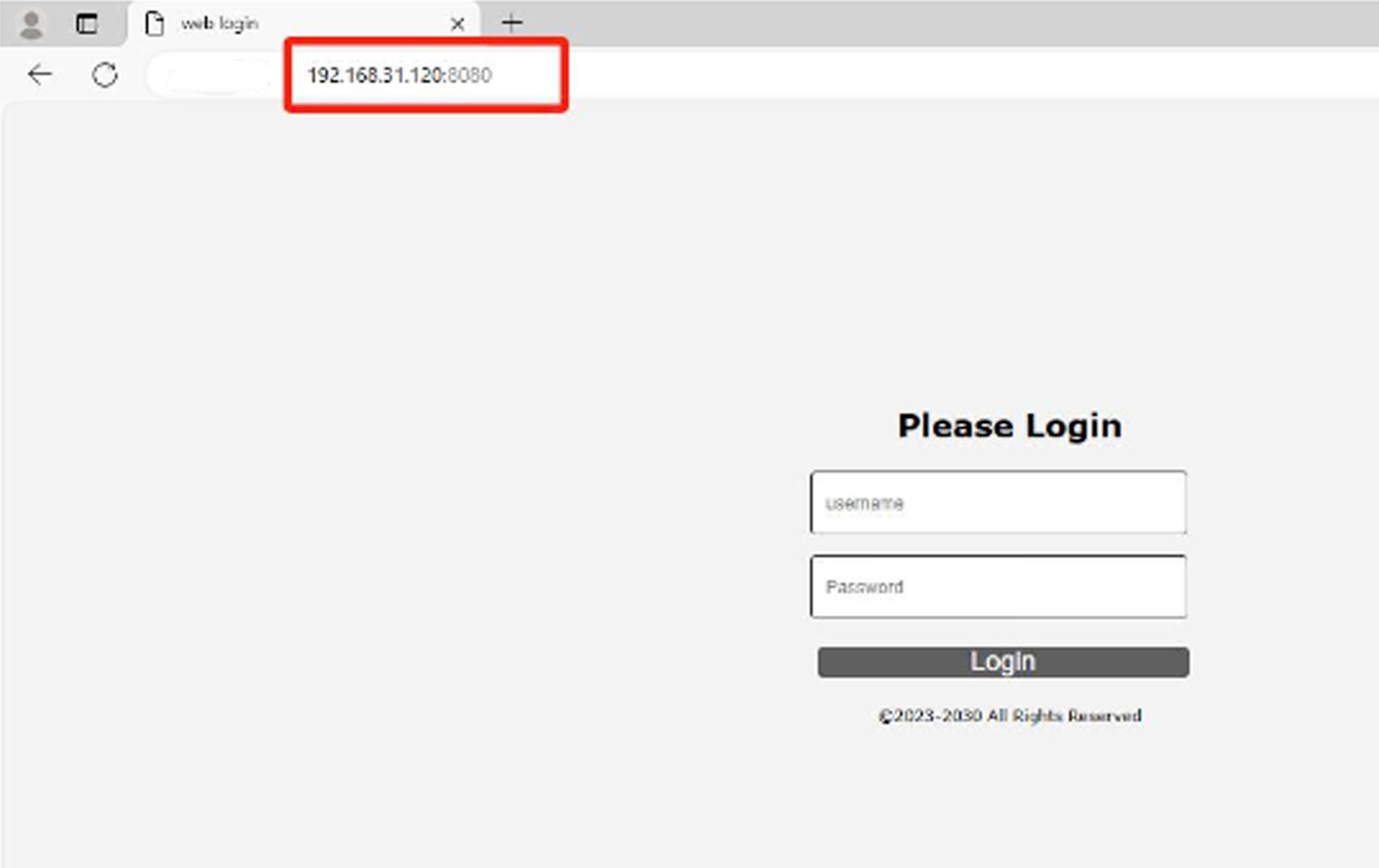
Enter the Charger IP into your browser, followed by :8080.
For example, if the Charger IP is 192.168.31.120, enter 192.168.31.120:8080 into your browser.
OR
Connect your charger's RJ45 port directly to your laptop using an Ethernet cable.
Check the Charger IP address from the charger screen.
Modify your computer’s Ethernet settings so it is in the same IP range (network segment) as the charger.
Web configuration access
Username: admin
Password: 12345678
Press “Login” or hit Enter to access the tool.
Set the correct parameters
And set PowerMeter LoadBalance Type to “CT MEASURE” and PowerMeter LoadBalance Addr to “1”:
Enter the actual value of the household main MCB total power (in kW) into Load Balance Max Power (kW) in the charge point admin user interface.
Was this article helpful?
That’s Great!
Thank you for your feedback
Sorry! We couldn't be helpful
Thank you for your feedback
Feedback sent
We appreciate your effort and will try to fix the article